
Getting a call from an unknown number can be a nuisance, especially when the caller blocks its number from being visible to you. Realtors and salespersons often find this hack helpful in getting naive individuals to pick up their calls.
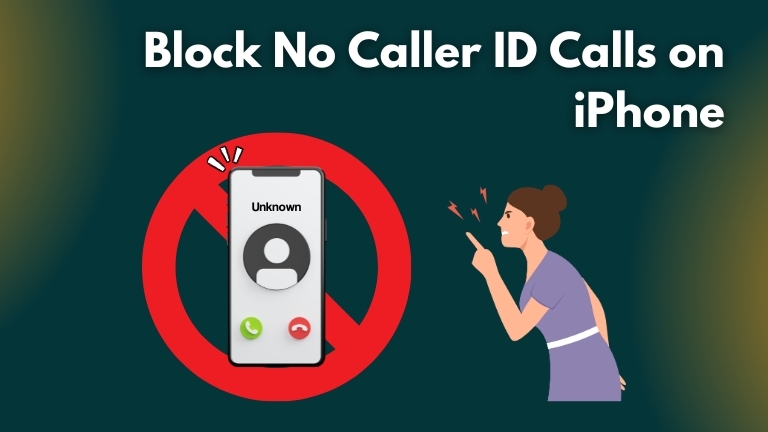
Sometimes, people like us who are on the receiving end often feel frustrated and interrupted by these unwanted calls. So, if you are wondering how to block no caller ID calls on your iPhone, then keep reading.
How to Block No Caller ID Calls on iPhone
Open your iPhone’s contacts and tap on the “+” icon at the top right side. Now, type “No Caller ID” as their name and “000-000-0000” as their phone number and press “Save.” Head back and open the new phone number you just created. Scroll down and select “Block this caller.” Tap on Block contact, and you’re done.
So, we’ve shared a list of things you can do to try and limit the number of unwanted phone calls you receive on your iPhone.
1. Try Blocking the Contact Permanently
If you’re receiving loads of unwanted calls from someone or a company, then try blocking that particular contact permanently. Here’s how you can block calls with no caller ID on your iPhone.
- Open the Phone app and select the Recent tab.
- Select the number you want to block and click on the (i) icon right next to it.

- Scroll down and tap on the “Block this Caller” option.
- Select “Block Contact“, and you’re done.
This trick can be the most efficient method to avoid spam calls, as blocking each number one by one can be annoying. Above all, malicious parties or marketers can call you using different numbers every time, so this means you have to keep up with the block cycle.
2. Enable Silence, Unknown Callers
This iPhone feature lets you block callers who are not in your contacts. The best thing is that any calls from unknown numbers will be directed to a voicemail and visible in your recent call logs. You can check the caller and listen to the voicemail later.
Here’s how to enable the Silence of unknown callers.

- Go to Settings and select the Phone option.

- Scroll down and click on “Silence Unknown Callers.”

- Now, slide the toggle to the right.

Remember that this feature also implies emergency or important calls from an unknown number (long-lost friend, HR, etc.), which means you may face problems if these calls are blocked. So, it’s best to adjust your settings wisely and ensure all important contacts are saved on your iPhone.
There is a flaw in this feature. If you have received multiple calls or messages from someone whose number is not saved in your contacts, Siri considers it a recommended contact and lets them pass through this screening feature.
3. Use Your Carrier’s Call-Blocking Service
Another great way to block spammers or calls with no caller ID on your iPhone is to employ a call-blocking service provided by your carrier. Remember, this DND-like service will vary from one carrier provider to another, so you have to contact your carrier provider to get more details regarding this service.
While it’s considered the best method to block phishing or marketing calls, not all carrier providers offer this service in every region. So, you’ll need to confirm with your carrier provider before enabling this feature.
4. Use DND or Focus to Stop No Caller ID Calls
If you’re partying, resting, working, or doing something, using the Silence Unknown Callers feature won’t be an ideal option. So, it’s best to use DND/Focus in these situations.
Turn On DND
You can use DND to block no caller ID calls on your iPhone. Once you know how to stop no caller ID calls on the iPhone using DND, you’ll only receive calls from allowed contacts, and the rest will be blocked.
- Open the Settings app and click on “DND” (Do Not Disturb).

- Go to Allow Calls From and choose All Contacts.

Once you turn on DND, all unwanted calls are silenced. Luckily, you can select your favorite contacts to pass through this feature.
Turn On Focus
iPhones have this versatile and smarter version of DND, Focus, which lets you filter calls according to your preferences. Here’s how to enable it.
- Open the Settings and tap on “Focus“.

- Choose from the Focus options.

- Now, go to Personal and click on “Calls from“.
- Select the “All Contacts” option.
Viola! Now you can add people who can call you when Focus is enabled by clicking on the “+” icon. Remember that calls from no caller ID or numbers that have not been added to the list will be silenced until you disable the Focus.
5. Try Blocking Calls Through Third-Party Apps
Yes, you can use a third-party app to block unnecessary calls, from marketing to phishing. There are hundreds of call-blocking apps out there that can save you from tons of spam calls, like Truecaller, Robo Shield, etc. Here’s how to do it:
- Open Settings and go to the phone menu.

- Click on the Call Blocking & Identification option and slide the toggle to the right.

So, whenever you get a call from an unknown caller, the app will search for the number in their spam callers’ list. If they find a match, they’ll probably label and silence it, depending upon your settings preferences.
Frequently Asked Questions
If your iPhone shows an “Unknown” caller, it usually means the person has chosen to withhold their number. To block these calls:
– Open Settings and go to Phone.
– Scroll down and select the “Silence Unknown Callers” option.
– Tap the toggle icon to enable it.
Follow these steps:
– Go to your Contacts and click on the “+” icon to add a new contact.
– Enter “No Caller ID” under the name bar and “000-000-0000” under the mobile bar.
– Save the contact and scroll down to select the “Block this Caller” option.
– Select Block Contact, and you’re done.
Note: Use this method with caution because sometimes genuine calls might get blocked.
It’s simple. Just enable the “Silence Unknown Callers” option under the Phone menu. Once enabled, this feature will silence all calls from unknown numbers.
When you get a call from “No Caller ID,” it means the person has purposely hidden their contact information from you. This makes it impossible to trace the callback and identify the person behind it.
You might wonder why your iPhone isn’t blocking unidentified or unknown numbers. Previously, the iPhone’s operating system didn’t allow for blocking unknown numbers. However, Apple has introduced updates, like “Silence Unknown Callers,” which enable users to silence or block unknown callers.
The Bottom Line
If you want a spam-call-free life, we’ve created this guide on how to block no caller ID calls on iPhone to keep the right balance between important unknown calls and irritating ones.
- Try blocking the contact permanently.
- Enable Silence of unknown callers.
- Use your carrier’s call-blocking service.
- Use DND or Focus to stop no caller ID calls.
- Try blocking calls through third-party apps.
We hope this guide has helped you live a spam-call-free life. If you have any questions regarding any of the tips mentioned above, feel free to ask them in the comments below!
Cite this page
Thakur, T. (2024, September 11). How to Block No Caller ID Calls on iPhone (PROVEN Fix!). TechKV. https://techkv.com/block-no-caller-id-calls-on-iphone/
Thakur, Tushar. “How to Block No Caller ID Calls on iPhone (PROVEN Fix!).” TechKV, 11 Sep. 2024, https://techkv.com/block-no-caller-id-calls-on-iphone/.
Thakur, Tushar. “How to Block No Caller ID Calls on iPhone (PROVEN Fix!).” TechKV, Last modified September 11, 2024. https://techkv.com/block-no-caller-id-calls-on-iphone/.
Source: <a href="https://techkv.com/block-no-caller-id-calls-on-iphone/">How to Block No Caller ID Calls on iPhone (PROVEN Fix!)</a>, TechKV

1 reader comment open for replies
Thanks cause I got a no caller ID calling me 2 times, one from 2 days ago and one from yesterday, there might be scammers or hackers tryna call me or something